
XYZ Cutter
CNC cutting machines are typically designed for cutting two-dimensional designs and include two axes, X and Y, used for cutting materials such as metal, wood, plastic, and others. These machines may also feature a Z axis, which adjusts the cutting nozzle’s distance from the workpiece surface. However, the Z-axis control in these machines is usually not automated or performed via G-Code; instead, the operator must manually adjust the nozzle’s distance. The Z-axis motors can be AC, DC, stepper, or servo motors, and depending on the type and thickness of the materials, the cutting nozzle can be equipped with air gas, plasma, waterjet, laser, etc.
Radonix Interfaces for CNC Cutting Machines
Radonix, a manufacturer of CNC controllers, has thoroughly analyzed these types of machines and designed dedicated interfaces for them. The XY-Cutter and XYZ-Cutter interfaces are specifically designed for these machines:
- XY-Cutter Interface: For machines without a Z-axis or with AC and DC motors for the Z-axis.
- XYZ-Cutter Interface: For machines with a Z-axis and stepper or servo motors.
In these interfaces, all inputs, outputs, and functions are designated with the prefix C-.
Key Features of Radonix Interfaces
- Direct execution of design files without the need for conversion to G-Code.
- The ability to select individual parts from a large file and define the sequence and direction of cutting for each piece.
- Design editing in the software with features such as Scale, Rotate, and Flip.
- Software-based correction of workpiece misalignment, especially for heavy sheets.
- Separate pauses for before, during, and after cutting.
- Reverse execution of designs and the ability to run demos without activating the cutting output.
- Execution of 2D designs on cylindrical surfaces such as pipes.
These features enable Radonix interfaces to provide more precise control and greater efficiency in the cutting process.
This interface is called XY Cutter
Radonix provides three distinct interfaces for XY Cutter machines, categorized based on the strategy and functionality of the Z Axis. This division ensures compatibility with various machine types and operational requirements. Below is a detailed explanation of these interfaces:
1. XY Cutter Interface (DC/AC Motor-Controlled Z Axis)
The XY Cutter interface is designed for machines using DC motors to control the Z Axis. In this setup:
- The Z Axis is controlled via output links:
- C-Zfree,1 for upward movement.
- C-Zfree,-1 for downward movement.
This simple control method does not involve pulse and direction signals, making it suitable for basic XY cutting machines. Operators can activate the outputs to move the Z Axis up or down as required.
2. XYZ Cutter Interface (Manual Stepper/Servo-Controlled Z Axis)
The XYZ Cutter interface is intended for machines using stepper or servo motors in manual mode. In this configuration:
- The Z Axis is controlled via pulse and direction signals, directly connecting to the Axis control pins.
- Operators can manually adjust the Z Axis position during toolpath execution to ensure the cutting tool (e.g., plasma torch) maintains the correct height from the workpiece surface.
This interface is particularly suited for applications where manual intervention is required to maintain precision during operation.
3. XYZ Cutter + THC Interface (Automatic Stepper/Servo/DC Motor-Controlled Z Axis )
The XYZ Cutter + THC interface is designed for machines where the Z Axis operates in automatic mode, managed by the THC (Torch Height Control) module. This configuration relies on feedback from the plasma unit’s arc voltage:
- Feedback Voltage Control:
- As the plasma arc length increases, the feedback voltage from the plasma unit rises.
- Conversely, as the arc length decreases, the feedback voltage drops.
- Automatic Adjustment:
- The Z Axis dynamically adjusts its height based on the feedback voltage to maintain the optimal cutting distance.
The THC module ensures real-time adjustments, providing consistent and precise cutting performance. This interface is ideal for high-precision plasma cutting machines where automatic height control is critical.
Summary
Radonix’s interfaces for XY Cutter machines are tailored to meet various operational needs:
- XY Cutter Interface: For basic machines with DC motor-controlled Z Axis, using C-Zfree,1 and C-Zfree,-1 outputs for up/down movement.
- XYZ Cutter Interface: For stepper/servo motors with manual operator control of the Z Axis via pulse and direction signals.
- XYZ Cutter + THC Interface: For stepper/servo motors + DC motors with plasma arc feedback, dynamically managed by the Torch Height Control (THC) module.
These interfaces ensure Radonix controllers provide versatility, precision, and adaptability for a wide range of cutting applications.
Complete Picture
Study about different parts ofthe interface, which is named and indicated in the photo. It means that you should get familiar with all elements like Buttons, screen, bars, volume, values, … anything on the interface you have accesses


Get Start
1 — Online
If the controller and software are connected, it is on.
If there is no communication between the controller and the software, it will be turned off (displayed in gray color).
2 — X Axis, Y Axis, Z Axis …
When each axis is active, it will be displayed with a light indicating its activation.
If an axis is inactive, it will be turned off and displayed in gray color (as shown in Figure 9).
Note: The display of the axes may vary in different interfaces.
The Interface may display all available axes or a different number depending on the interface’s capabilities. Please note that the communication cable between the controller and the drive must be connected, and the drive parameters must be configured in position mode
3 — Alarm
If there is an error or any issue with the connection between the controller and the motors/drives, or if a drive error occurs, the indicator will turn on. Otherwise, it will remain off .
4 — Emergency
In the event of an error in the emergency settings section, the indicator can be adjusted to turn on.
The number of emergency device inputs can be increased or decreased.
5 — Absolute & Relative
Absolute: Displays the coordinates of the axes in reference to the home point.
Relative: Shows the coordinates of the axes relative to the current position.
Note: The display of coordinates may vary in different interfaces.
The interface may display all available axes or a different number depending on the interface’s capabilities.
6 — Tool Path (Graphical Movement Indicator Tool)
Once a file has been loaded, the movement path will be displayed in this section.
Both in simulation mode and during actual operation, you can observe the device’s movements and the sequence of program execution.
In the upper left corner, each side of this panel illustrates different movement components.
You can view the design from three different perspectives and zoom in or out.
By holding the right mouse button, you can change the viewing angle of the design.
7 — G-Code display
Once you have loaded the desired file using the Open button, the G-Code and program lines will be displayed in this section.
During program execution, each executed G-Code line will be highlighted with a different color.
8 — Open
It is used to load G-Code, dxf, files.
Shortcut: CTRL + SHIFT + ALT + O
9 — Run
This button is for program execution.
Different interfaces may have more than one Run button.
10 — Text box
Under normal conditions, the name of the interface is displayed. During operation, the estimated time and the remaining time of the process are shown. In case of any alarm or Emergency, this section turns red. By double-clicking the left mouse button, the “Form Debug” window opens, where you can view the controller and software activity logs, the Radonix software version, the
type, and any active alarms.
By pressing the shortcut key twice, a full performance report of the machine will open in Notepad.
11 — Setting
All device parameters can be configured in this window. (For more information, refer to the Setting section.)
12 — Min
In order to minimize the software window, press the minimize button.
13 — Exit
To exit the software.
14 — Velocity
This feature is available in some interfaces and displays the movement speed in ToolPath.
It can be added to interfaces that do not have this feature by default.
(For more information, refer to section 4.2.7.)
15 — P1 / P2 / Sheet Align
it is necessary for the loaded design to rotate around the zero point according to how much the workpiece is skewed relative to the cutting table, so that the design aligns with the workpiece. To calculate the amount of rotation needed for the design, two points on the workpiece must be introduced to the software, as shown below, allowing the software to compute the angle of rotation.
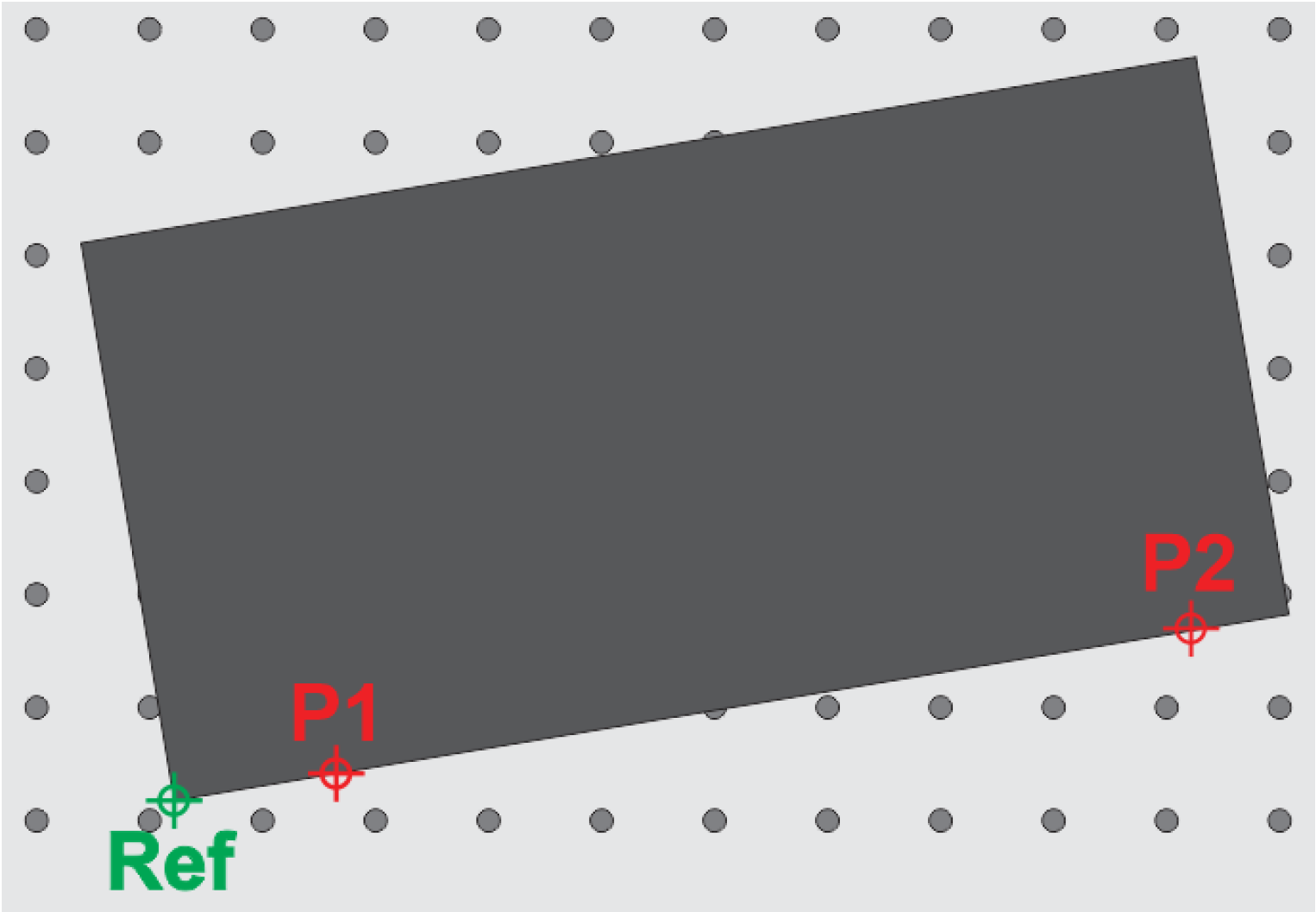
For this task, after loading the desired design, the cutting nozzle tip should be brought to a point tangent to the edge of the sheet. At the first point, press the P1 button, and at the second point, press the P2 button to introduce these two points to the software. By doing this, a blue line is drawn between these two points, which is exactly tangent to the edge of the workpiece.
16 — set reference
By pressing this button, the machine will slowly move toward the Home sensors to locate the zero point. Please note that before pressing this button, you must ensure that the axis movement directions, axis speeds, and the Home sensors are correctly configured.
Shortcut: Alt + Home
17 —Flip / Scale
Whenever you upload a design, you are able to flip it in vertical or horizontal mode.
In addition, the Scale option will help you change the dimensions of the design.
18 —Cut velocity
If the operator needs to cut a part of the workpiece manually and without a design, they can activate the C-CutPin output and perform the cut using the JOG (manual movement) keys.
In this mode, the machine’s movement speed is defined by this parameter, which is measured in millimeters per second (mm/s).
19 — Stop
To stop the process of device operation.
20 — Velocity text box of axes (X mm/s, Y mm/s, Z mm/s)
In these text boxes, the movement speed of the axes can be entered, and these values are applied in Continuous mode or (blank in image) if the Jog key is held on the desired axis.
In Continuous mode, the value entered in the text box for each axis is represented as a percentage of manual movement speed (in relation to it). The Jog term is multiplied, and by pressing the Jog key, each axis moves at the speed resulting from the product of the Jog term and the value entered in the Velocity text box.
For example:
If the number entered in the Velocity text box for the Z axis (Figure 11) is 10 mm/s, and the Scroll percentage is 100%, the product is 10 mm/s.
By pressing the Z+ or Z– key, the Z axis moves in the positive or negative direction at 10 mm/s.
21 — Step text box of axes (X mm, Y mm, Z mm…) which are located next to the axes In these text boxes, the movement value of the axes is entered, and these values are applied in Incremental mode or (blank) when the corresponding Jog key for each axis is pressed.
In Incremental mode, the value entered in the text box for each axis is multiplied by the Scroll percentage related to manual movement (Jog).
When the Jog key is pressed, it moves by the product of the above value.
For example:
If the value entered in the Step text box for the Z axis (Figure 11) is 50 mm and theScroll percentage is 100%, then Z+ and Z– will move 50 mm respectively.
22 — Two-axis movement simultaneous
The button for simultaneous movement of two axes is used to move two axes at the same time.
It works the same as pressing two Jog buttons at the same time, but each axis will move based on its own set parameters and speed.
The function is similar to item 25 of the table.
23 — Continuous and incremental
This button is a toggle switch; each time you press it, the mode alternates between Continuous and Incremental.
In Continuous mode, if you hold the Jog key, the selected axis moves at the set speed.
In Incremental mode, by pressing the Jog key each time, the selected axis moves the specified distance.
(Refer to item 21 for more information.)
24 — Scroll
In fact, the percentage of this scroll is calculated by multiplying the values in the text boxes in manual or jog mode (refer to numbers 20 and 21 in the table for more information).
25 — X+, X-, Y+, Y- …
To manually move the axes, the Jog axes can be used in two modes: Continuous and Incremental.
In Incremental mode, the axis moves by the distance specified in the Step text box.
In Continuous mode, the axis moves at the speed specified in the Velocity text box
26 —Cut ( Button )
It is used to activate or deactivate the C-CutPin output
27 —PreCut ( Text box)
For the cutting process of each piece, three timers are provided to the operator, each of which can be adjusted independently. These timers allow the cutting operation to run automatically without requiring continuous supervision by the operator.
The first stage, known as PreCut, begins once the machine reaches the cutting start point and the first timer is activated.
28 —Cut ( Text box)
For the cutting process of each piece, three timers are provided to the operator, each of which can be adjusted independently. These timers allow the cutting operation to run automatically without requiring continuous supervision by the operator.When the first timer finishes, the second stage, known as Cut, begins and the second timer becomes active.
29 —M
In Cutter interfaces, the operator has the ability to run the loaded design once in Demo mode. In this mode, the cutting output does not activate, and the machine runs at high speed (this speed can be adjusted from: Settings → System → ToolPath → TraverseVelocity). This allows the operator to verify that the design will execute correctly and that the entire toolpath is positioned properly on the raw material.
To activate this mode, the C-ManualCut function is used
30 — Play
To execute or resume running the program.
31 — Pause
To halt the execution of a program, it’s important to note that pressing the Pause button will stop the program on the same G-Code line.
The program can be resumed from that line by pressing the Play button again.
32 — Stop
To stop and reset the program.
33 — Scroll In order to control the execution speed of the program.
Examples of Hardware Inputs:
- Limit Switches: Define physical boundaries for axis movement.
- Home Sensors: Establish the reference (Home) position for the machine most of them are Proximity
- Emergency Stop Buttons: Ensure immediate halting of operations in emergencies.
- Other Proximity Sensors: Detect objects or tools in the machine’s workspace.
- Push Buttons and Selector Switches: Trigger specific machine functions or modes.
- Scanners: Measure or detect specific properties, often used in specialized processes such as Glass or gold CNC operations.
34 — Scroll In order to control the execution speed of the program.

The Activation Code of the controller specifies the number of active axes available on the device. This code is provided to the user at the time of purchasing a Radonix controller, based on the customer’s specific requirements.
In fact, when purchasing Radonix products, users have the option to select the number of active axes for their controller. This flexibility allows users to modify their machine later—by adding or removing an axis—without needing to replace the entire controller. Instead, they only need to obtain a new Activation Code that matches the desired number of active axes.

Therefore, when launching the Radonix software, if the Activation Code field is left empty, the system will display an Error A-Code message, which stands for Error Activation Code. This message prompts the user to enter the correct activation code corresponding to the serial number shown in the error window. .
Entering the Activation Code
To enter the activation code, follow the steps below carefully:
First, open the Settings window in the software and go to the Security tab. In the Activation Code section, you will see a rectangular box located beside the word Serial. This box is where you must enter the activation code.
Now, enter the 16-digit activation code provided by the company into this rectangular field. After typing the code, click on the OK button and then exit the software.
Once you restart the Radonix software, the activation code will be successfully registered, and the A-Code Error message will no longer appear.
Note:
After entering the activation code and applying the related axis activation settings, make sure to exit the software completely to save and apply the changes properly.
Timed Locks
Timed locks are tools used to control the financial settlement process of a manufactured machine. They allow the manufacturer to stop the machine’s operation at specific times, ensuring that the machine cannot continue working without the manufacturer’s authorization.
This authorization is granted through password codes defined for particular dates by the manufacturer and stored directly on the controller hardware. Therefore, it remains unaffected even if the software or computer is changed.
A maximum of 24 timed locks can be defined on the controller. Each password can contain up to 8 English letters or numbers, with case sensitivity (distinguishing between uppercase and lowercase letters).
The dates are defined based on the Gregorian (solar) calendar, and their format must strictly follow the structure provided by the software during the definition process.
Activating Timed Locks
To define timed locks, it is necessary to connect the controller to the computer and establish communication between the controller and the interface. In other words, the controller must be online, and the activation code of the controller must be entered.
If all these conditions are met, the Update button in the Internal Clock section becomes active, allowing the controller’s date and time to be updated.

In the Conditions section, there are two buttons: Add and Remove. The Add button is used to define a new lock, while the Remove button is used to delete an existing lock.
This section allows the machine manufacturer to define or delete up to 24 locks.
After clicking the Add button, a window will appear showing the structure required to define a lock. Locks must be defined according to this structure.
( you must first enter the date on which the lock should be activated, and then enter the password, which can be up to 8 characters long.)
To delete a lock, you must know its password. Therefore, if the password is forgotten or unknown, the lock cannot be deleted.
Important Notes on Timed Locks
- When the date of a timed lock arrives or has already passed, executing the program will trigger a “Condition Key” warning message. The user will then be prompted to enter the corresponding password.
If the correct password is entered, the program resumes normal operation; otherwise, program execution will not be possible. - If the lock date occurs while a project is running, the warning will not appear immediately. Instead, it will be displayed the next time the user attempts to execute a command.
- The timed lock only affects the program execution command. All other commands, such as manual controls and input/output operations, remain functional.
- When defining locks, be extremely careful and pay attention to uppercase and lowercase letters in the password. Always record the passwords securely.
If a password is entered incorrectly or forgotten, the lock cannot be deleted. The only solution is to erase the controller’s memory, which can only be performed by the controller manufacturer. - If there is any intentional interference with the controller’s internal clock hardware, the controller will completely stop functioning, and the only way to recover it is by reprogramming it through the manufacturer.
- The list of defined locks cannot be viewed without the controller’s activation code. Therefore, users cannot see the number or the dates of the locks.
- The controller manufacturer will not perform any update, memory reset, or reprogramming without the authorization of the primary purchaser registered in the manufacturer’s records.
Consequently, machine builders can be assured that end users cannot remove timed locks without the manufacturer’s or builder’s approval.
Password
To protect the machine’s essential settings and prevent unauthorized changes by unqualified users, a password of up to 8 characters can be defined. This password may include numbers, letters, and symbols, and is case-sensitive (it distinguishes between uppercase and lowercase letters).
The password restricts access to certain configuration sections related to the machine’s core parameters. Without entering the password, only general settings can be modified.
The password is also transferred through the settings backup file. Therefore, when installing a backup on another computer, the same password will be required to make any changes to the settings.
To define a password, click the Add button in the Password section of the Security tab under the Setting window. Then, enter your desired password twice (as shown in Step 2) and finally click OK to confirm.

To change or delete the password, use the Change button.
It is important to note that knowing the current password is required in order to change or remove it .
To change the password:
After entering the current password, enter the new password twice and click OK to confirm.
To delete the password:
After entering the current password, leave the new password fields empty and confirm to remove the existing password.
Please note that the space character is also counted as a valid character.
- If you wish to remove the password, simply enter the previous password in the Current Password field and click OK.
- The password is not stored on the hardware, and therefore it does not have the same level of security as the timed locks

Work Time
When the connection between the controller and the interface is established, the controller’s operating time is displayed using the Work Time option under the Security tab in the Setting window.
The Work Time does not depend on whether the controller is powered on or online. It only records the periods during which a program is actively running.

Setting Section
Now we will examine the Setting section within the Setting window.
This section presents a tree diagram containing all the main configuration categories of the Radonix controller. Each branch of the tree includes various parameters and variables, and each of these parameters—depending on its type—has corresponding links or options that allow the user to apply specific configuration settings.
Types of Links:
- Input Pin Links (InPort)
- Output Pin Links (OutPort)
- Function Links (Function)
- Analog Links (Analog)
- Parameter Links (Parameter) — numerical values or parameters
- Status Links (Status)
Links and Functions
Links related to functions are available across all input types, including remote control, keyboard, controller inputs, and joystick, as well as within software buttons such as Button, Toggle, and others.
- Links associated with inputs and outputs include the word “Pin” in their names.
- Status links are used only in the Signal element
Argument
Arguments are usually numbers (e.g., -3, -2, -1, 0, 1, 2, 3, …) or axis names (such as X, Y, Z, A, B, C, …).
They are typically added after the link name, preceded by a comma (,) and followed by the desired argument.
This structure allows each link to be used individually for a specific operation or function.
For example:
Link Name comma (,) axis names
An argument can also have anegative sign In some links, you can use multiple arguments simultaneously If this is possible, it is clearly mentioned in the corresponding link tables.
In such cases, simply place a comma ( , ) after each argument and add the next one.
Inputs and Outputs in Radonix Cam Pro
Location: Inputs and outputs in the Radonix Cam Pro software are typically managed through a dedicated section of the software interface is located in Setting / System / Inports or Outports.
These settings allow users to configure and customize the behavior of the machine’s physical and virtual components to meet specific operational needs.
Accessing Inputs and Outputs
- Navigate to the Settings menu.
- Select System to open the configuration options.
- Choose either Inports or Outports to access the respective settings.
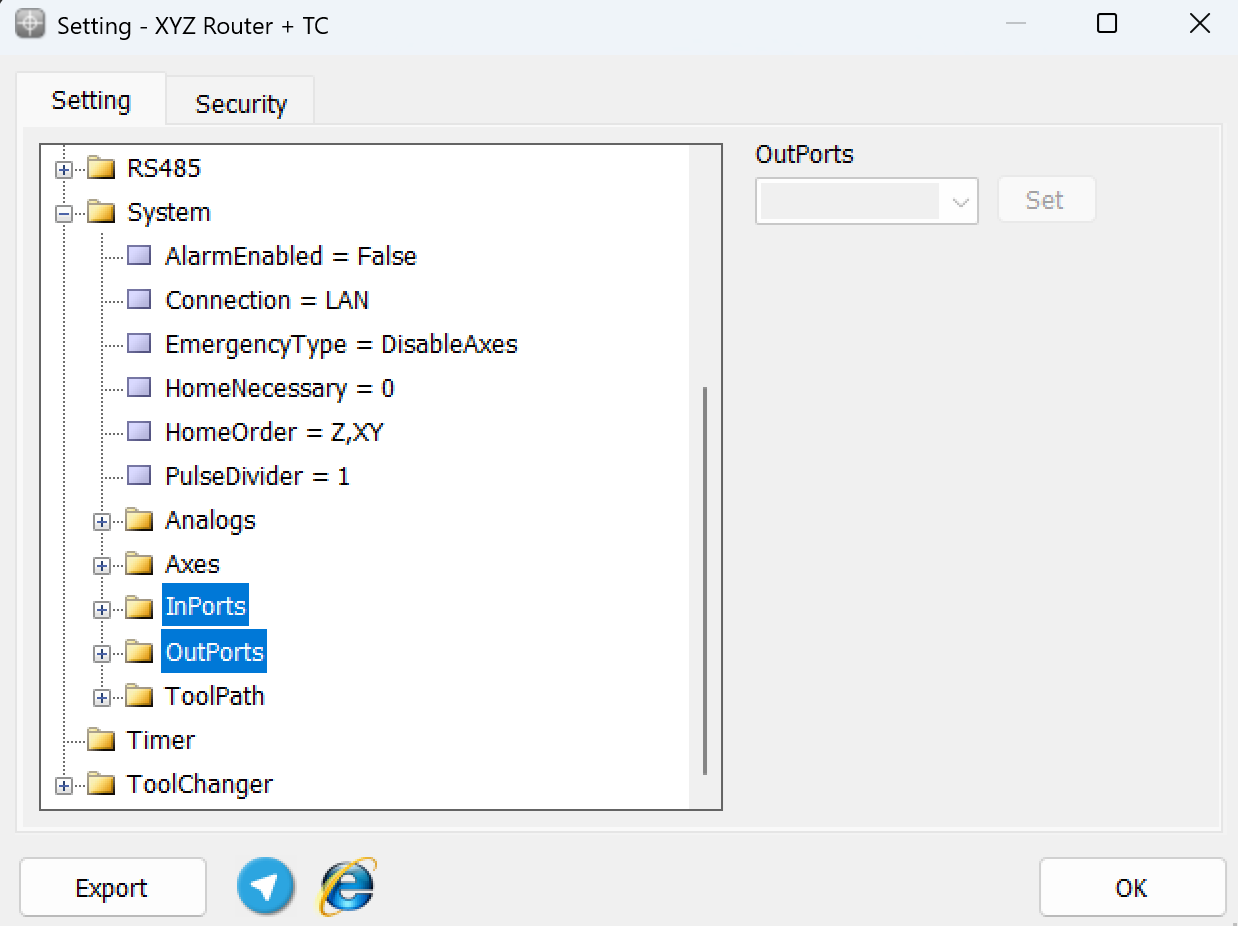
Expanding Input/Output Sections
- Beside each part (Inports or Outports), you will find a plus (+) button.
- Clicking this button will expand the section, revealing the configuration options for individual inputs or outputs.
How you can monitor all inputs and outputs together
Overview
In Radonix CAM-Pro software, you can quickly view the status of the controller’s internal variables, axes, inputs, and outputs using a special diagnostic shortcut. This is particularly helpful for troubleshooting issues related to sensors, axes movement, or output signals.
Shortcut: CTRL + SHIFT + ALT + Delete
Press CTRL + SHIFT + ALT + Delete to open an on-screen display that shows: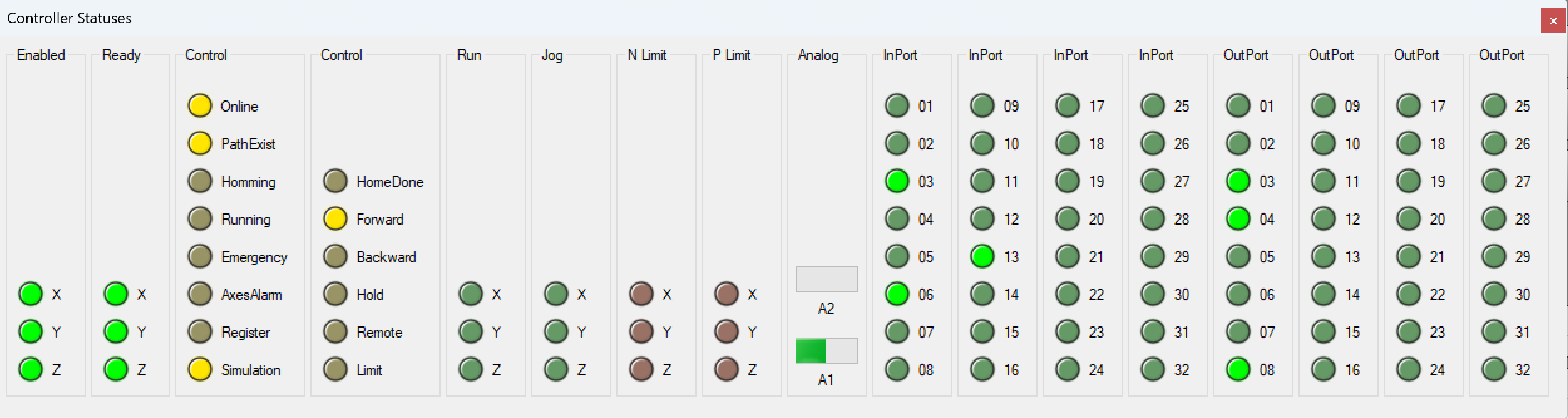
- Internal Variables:
- Real-time values of key parameters such as feed rates, acceleration values, and any custom variables used in your CNC programs.
- Axes Status:
- Current positions of the X, Y, Z (and any additional) axes.
- Movement states (e.g., jogging, homing, paused).
- Activation status (green lights) indicating whether each axis is online and responsive.
- Inputs and Outputs:
- A list of digital inputs (limit switches, sensors, emergency stops) and their live state (ON/OFF).
- A list of digital outputs (relays, spindle on/off signal, pneumatic valves) and whether they are currently active or inactive.
Usage Scenarios
- **Wiring Diagnostics:**Confirm that a limit switch or sensor correctly toggles from OFF to ON when physically triggered.
- **Axis Verification:**Check whether the software is correctly commanding each axis to move, and whether the axis is acknowledging motion.
- **Signal Confirmation:**Verify if the controller is sending the correct signal to external hardware (e.g., spindles, vacuum pumps, coolant systems).
Tips & Notes
- The CTRL + SHIFT + ALT + Delete shortcut is unique to the Radonix CAM-Pro software and is not the same as the standard Windows CTRL + ALT + Delete function.
- If nothing appears on your screen after using the shortcut:
- Ensure that Radonix CAM-Pro is running and the controller is powered on.
- Verify that you are using the correct key combination in the proper sequence.
- If you encounter persistent issues or see unexpected values in the diagnostic view, consult your system administrator or contact Radonix technical support.
Software Configuration: Bringing the System to Life
Step 1: Install Radonix Cam Pro
- Download and install the software on your PC.
- Upon turning on the controller, observe the LEDs on the LAN port: one should remain steady, while the other blinks.
- Connect the Radonix controller to the computer via a LAN or USB cable.
Step 2: Initial Setup
- Open the software and initialize the system.
- Perform a factory reset to ensure default settings are applied.
Step 3: Configure Inputs
- Navigate to Settings > System > Inports.
- Assign roles to each input:
EmergencyStopfor the E-Stop button.HomePin, X Or Y Or Zfor home sensors.LimitPin, X Or -Xfor limit switches.
- Test each input by activating it physically and observing the software response.
Step 4: Configure Outputs
- Navigate to Settings > System > Outports.
- Assign roles to each output:
SpindleControlfor spindle activation.Coolantfor the coolant pump.
- Test outputs by toggling them in the software and observing the connected devices.
Step 5: Axis Calibration
- Go to Settings > System > Calibration.
- Enter parameters for each axis:
- Steps per Unit: Based on lead screw pitch, motor steps, and encoder resolution.
- Max Travel: Define the maximum travel distance for each axis.
- Test calibration by commanding movements and measuring actual travel distances.
Inputs
Inports provide simple logical functionality to configure arbitrary links and integrate them with related physical hardware .They facilitate quick and simple installation without the need for microprogramming. Users can simply select options from a list and configure settings to maximize efficiency
.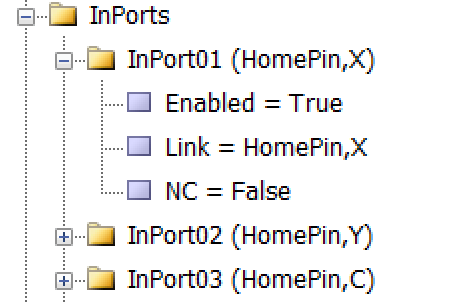
As illustrated in the figure, each input is divided into three sub-branches, as detailed below:
- Enable: This sub-branch can be set to two values: True or False.
- Link: Specifies the duty or task that needs to be performed or checked. This includes any device that can serve as an input, such as sensors, buttons, and switches.
- NC: Determines whether the specific input is Normally Open (NO) or Normally Closed (NC).
Configuration Process:
- Access Configuration Interface:
- Open the controller’s software settings to manage inputs.
- Define Parameters:As an example to set limit Switch :
- setting —→ System —→ In ports —→ Enabled= True
- Linked = LimitPin,X
- NC= True
- Configure additional logical conditions for interlocks or simulations.
Setting Up Inputs
Simple and Intuitive Configuration
In Radonix system, configuring inputs or Outputs is designed to be as user-friendly as possible, without requiring any microprogramming or advanced technical knowledge. All you need to do is navigate to the Inputs section of the controller interface, open the settings drawer, and select the item you need to configure. The same process applies to other sections, such as Outputs or any other functional areas.
- Access the Desired Section:
- Go to the section you want to configure, such as Inputs or Outputs, depending on the functionality you are setting up.
- Open the Settings Drawer:
- Within the selected section, locate the specific input branch or subsection.
- Click or expand the settings drawer to reveal the available options.
- Select the Required Item:
- Choose the input type or functionality you want to configure (e.g., limit switch, home sensor, emergency stop, or custom inputs).
- Define the specific role for the input, such as
LimitPin, XorHomePin.
- Set Parameters Easily:
- Adjust the necessary parameters, such as polarity (Normally Open or Normally Closed), response delays, or logical behaviour, directly from the interface.
- Save and Test:
- Save your settings and validate them through the controller interface to ensure everything is functioning as intended.
- In the end in order to finalizing you have to close program to save everything
Radonix recommends the following essential inputs and outputs for the initial configuration .
1-Emergency Stop (E-Stop):
A critical response mechanism in industrial settings used to halt machinery and equipment immediately in order to protect against imminent danger. This action is typically engaged through an emergency stop button or switch that, when activated, interrupts the power supply and ceases all operations, effectively minimizing the risk of accidents, injuries, or damage to the machinery and personnel.
Configurable Emergency Mode
An advanced feature in control systems that allows users to define and set up custom emergency responses through the system settings. This mode can be programmed to engage different levels or types of responses depending on the nature and severity of the threat detected.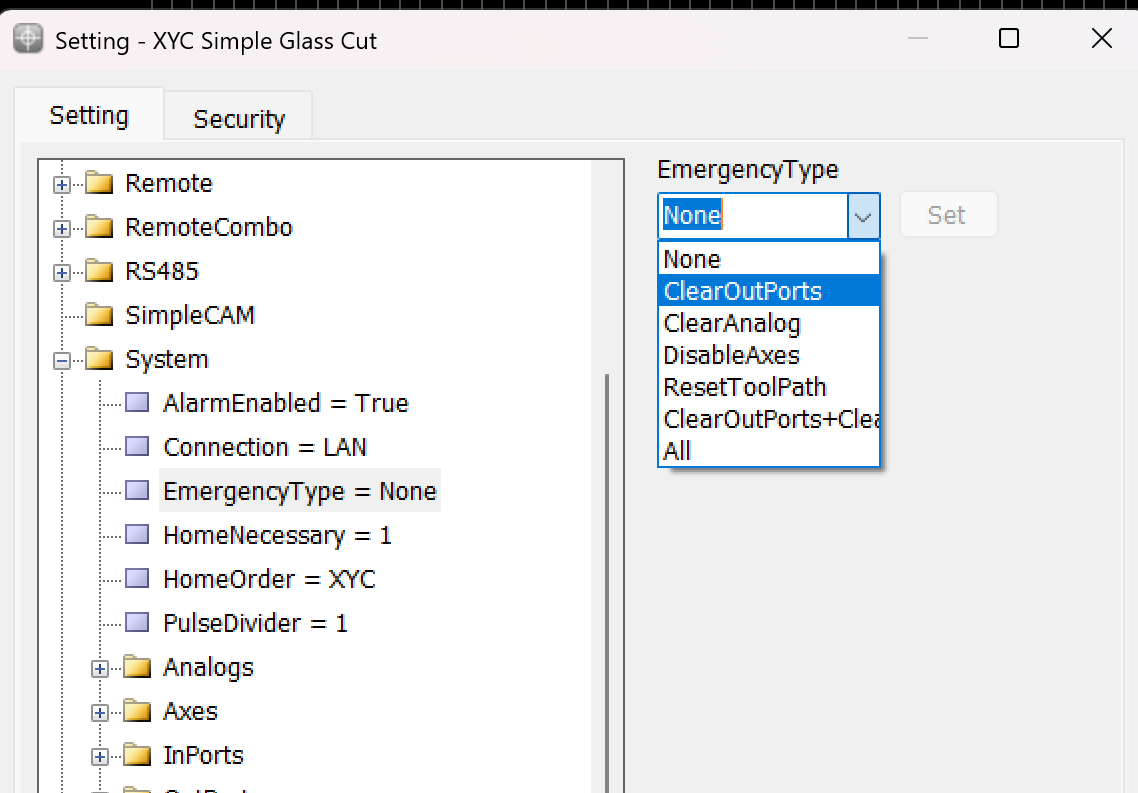
This variable is used to determine the operation that occurs when the Emergency button is pressed.
- None: When this mode is selected, the machine operation is similar to a pause. The device stops all activities but cannot be resumed from the same point if this mode is triggered.
- ClearOutPorts: Activating this mode stops the axes and turns off all digital output ports of the controller. This ensures that no further commands affect the machine’s operation until reset.
- ClearAnalog: This mode stops the axes and turns off all analog outputs. It’s used to ensure that any variable outputs controlling aspects like tool pressure or spindle speed are deactivated.
- DisableAxes: In this emergency mode, the axes of the machine are stopped and become inactive, which means the motors that drive the axes are disengaged, allowing them to move freely if manually pushed but not under power.
- ResetToolPath: This mode stops the axes and resets the toolpath to the start of the program. This is useful in scenarios where the process needs to be started from the beginning, either to prevent damage or to correct an error.
- ClearOutPorts+ClearAnalog: This comprehensive emergency mode combines the effects of ClearOutPorts and ClearAnalog, stopping all digital and analog outputs, disabling the axes, freeing the motors, and resetting the toolpath to the first coordinate. This is effectively a full reset of the system’s operating state.
- All: Selecting “All” activates all the above emergency responses, providing the maximum level of immediate system shutdown. All outputs, both digital and analog, are turned off; axes are stopped and freed; and the toolpath is reset.
2-Home Sensors
****Home sensors are so crucial for positions it means that thanks to these sensors the position become meaningful , they are impact in defining table size the sensors are machine zero point or machine origin point when axis reach the sensors the controller detect them and it causes that a red table is created in Black Grid space so with this option each point in this area has its own position than sensors in each axis
Indeed, home sensors are integral to the function and accuracy of CNC machines. Let’s explore further how these sensors interact with the CNC controller and influence the machine workspace setup:
Role and Functionality of Home Sensors:
- Defining the Origin: Home sensors establish the machine’s zero point or origin. This point serves as the reference for all other positions within the machine’s operational space. It ensures that the machine knows the starting point for all axes (typically labelled X, Y, and Z).
- Impact on Table Size and Work Area Definition: The detection of the home position by these sensors directly impacts the definition of the machine’s table size. This is because the machine controller uses the origin point to calculate and define the extents of the machine’s operational area or table. The movements and operations of the machine are confined within these calculated boundaries to ensure precision and to prevent the machine from moving beyond its capable limits, which could cause damage or errors.
- Visualization on Controller Interface: When the home sensors are triggered, the CNC controller can visually depict this on its interface, often illustrated as a “red table” laid out on a “black grid” background. This visual representation helps operators to see and understand the active working area of the machine. It shows where tools can safely travel and operate, providing a clear demarcation of the workspace.
- Positional Accuracy: Each point within this defined red table area has a specific position relative to the machine’s origin point, determined by the home sensors on each axis. This arrangement allows for precise control over the machine’s movements and operations, ensuring that every motion made by the machine is accurately accounted for relative to the origin, enhancing both the precision and reliability of the work performed.
- Operational Reliability: Regularly using home sensors to reestablish the machine’s origin point helps maintain operational accuracy and reliability, crucial for long-term consistent output, especially in precision-dependent applications.
Overall, home sensors not only provide a safety mechanism by defining the limits of machine operation but also enhance operational precision by establishing a clear and reliable reference point for all machining tasks. This setup ensures that every point within the operational area is accurately positioned relative to the origin, making the machine’s functioning both predictable and precise.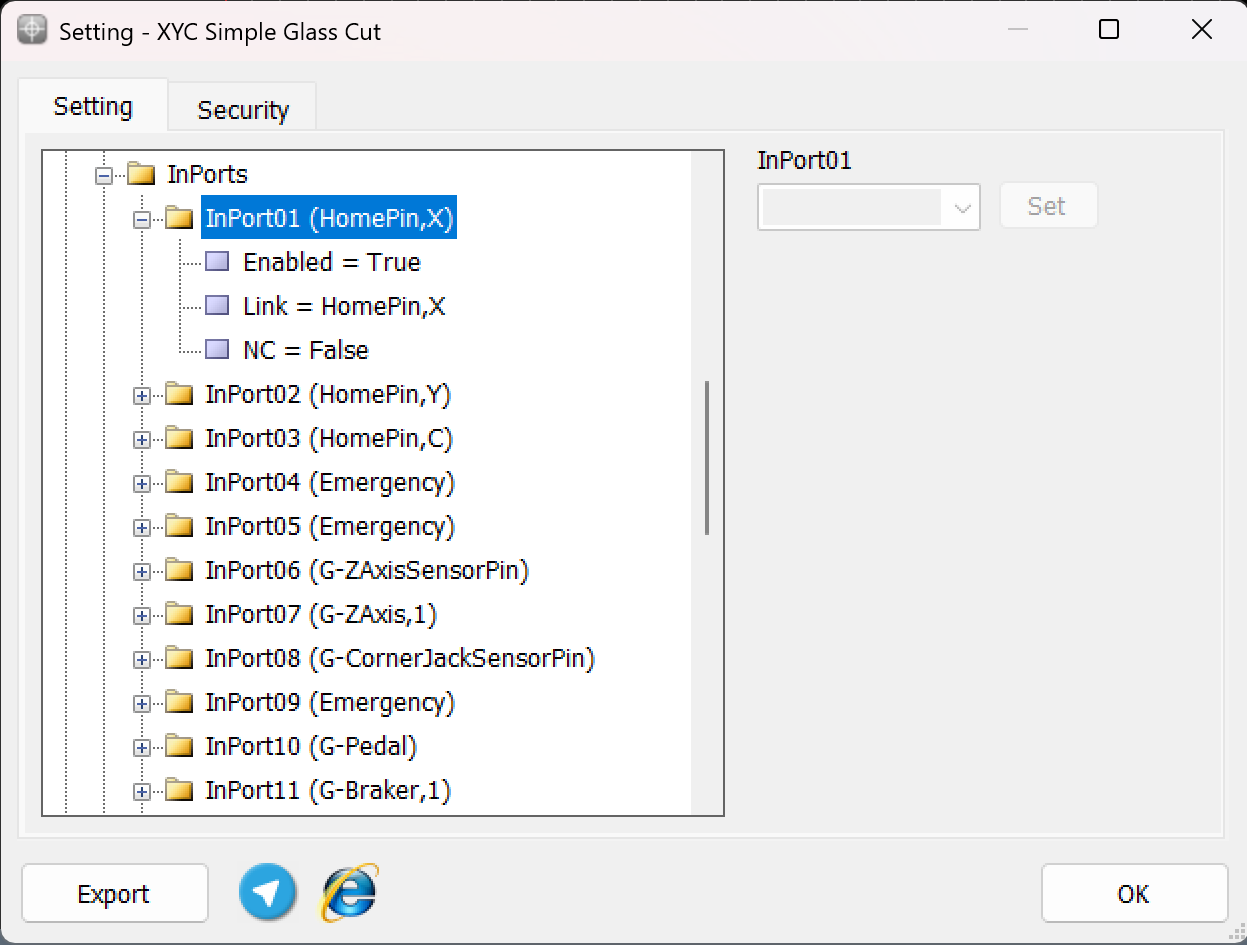
To ensure precise cessation of axis movement after issuing the Home command, the appropriate input links must be configured prior to pressing the Home button, as depicted in the above explanation. This configuration ensures that the machine accurately detects the home position for each axis.
For example:
- The input HomePin,X is assigned to detect the X-axis home position. This means that when the X-axis sensor aligns in front of its designated home sensor, the system identifies it as the home position.
- Similarly, other axes such as Y , C , Z require their respective input links, such as HomePin,Y or HomePin,C, to be properly set based on the machine’s axes and sensor alignment.This structured setup allows the machine to halt each axis movement accurately when it reaches its home position, ensuring safe and reliable operation during homing procedures.
3-Limit pin
In CNC machines, limit pins serve as an essential safety feature to prevent the machine axes from exceeding their physical boundaries. These pins are linked to hard limit switches, which are mechanical or sensor-based devices that stop the machine when triggered.
While Radonix controllers also provide soft limits within the software settings, hard limits add an extra layer of protection and ensure the machine operates safely in unexpected situations.
Key Points about Limit Pins
- Hard Limits:
- Hard limits rely on physical limit switches installed on the machine.
- When an axis reaches the limit switch, the corresponding input link (e.g., LimitPin,X, LimitPin,Y, or LimitPin,Z) is triggered.
- The machine automatically stops to avoid damage to mechanical components.
- Soft Limits:
- Soft limits are defined within the Radonix settings after calibration process.
- The operator sets the allowable movement range for each axis through software, ensuring the axis does not move beyond these defined boundaries.
- These limits are monitored digitally and act as a preventive measure before reaching the physical hard limits.
- Dual Safety Mechanism:
- Combining hard limit pins with soft limits ensures maximum protection:
- Soft Limits act as the first line of defense to stop movements within software-defined boundaries.
- Hard Limits serve as a final physical safeguard to prevent any accidental overrun of the machine axes.
- Combining hard limit pins with soft limits ensures maximum protection:
Configuration of Hard Limit Pins
To set up hard limits in Radonix controllers:
LimitPin,X /// limitPin,-X ///LimitPin,Y /// LimitPin,-Y /// LimitPin,Z /// LimitPin,-Z
Navigate to System > InPorts in the Radonix software.
Assign the input links for the respective limit switches:
LimitPin,X for the X-axis hard limit.
LimitPin,Y for the Y-axis hard limit.
LimitPin,Z for the Z-axis hard limit.
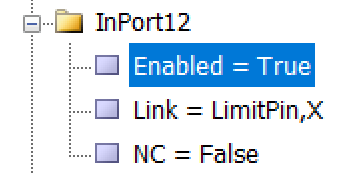
Ensure the Enabled parameter is set to True.
Outputs
Outputs provide simple logical functionality to configure and integrate them with related physical hardware. These features are crucial for enhancing control capabilities. They facilitate quick and simple installation without the need for microprogramming. Users can simply select options from a list and configure settings to maximize efficiency.

As illustrated in the figure, each output is divided into three sub-branches, as detailed below:
- Enable: This sub-branch can be set to two values: True or False.
- Link: Specifies the duty or task that needs to be performed or checked. This includes any device that can serve as an output, such as actuators, lights, and alarms.
- NC: Determines whether the specific output is Normally Open (NO) or Normally Closed (NC).
Outports
Each outport pin can be assigned a specific function that controls an external device, actuator, or machine component.

Here, you can see the most essential output connections required for a standard installation. The remaining output links are defined in the main reference section.
Calibration
Calibration Definition
Calibration refers to the process of aligning the motion value of an axis with one of the standard units or with a specific value. Common units in industrial devices are usually millimeters, centimeters, meters, inches, feet, degrees, etc., which are available for use based on the need. Therefore, the concept of calibration for the millimeter unit can be expressed as the alignment of the motion value of the desired axis with the millimeter unit. That is, in the case of measuring with measuring tools, the numerical value of the motion of the axis should be consistent with the measured value in millimeters.
Motor Types in Calibration
In Radonix controllers, the calibration procedure for each axis is determined by the motor type. The key requirement for ensuring compatibility with various motor types is that the selected motor must support both pulse and direction signals.
Servo motors
A servo motor is a type of rotary actuator or linear actuator that allows for precise control of angular or linear position, velocity, and acceleration. It typically includes a motor coupled to a sensor for position feedback. Servo motors are essential in applications where precise positioning is required, such as in robotics, CNC machinery, and automated manufacturing. They use feedback signals to adjust motion parameters and can be controlled through servo mechanisms that utilize error-sensing feedback to correct performance.
Electronic Gear box:
An Electronic Gear Box is an integral component in modern servo systems, especially in applications that involve servo motors, like those used in automation and robotics. This technology essentially functions as a virtual gearbox that adjusts the speed and torque of a motor electronically, rather than mechanically. By manipulating the frequency and amplitude of the motor’s input signals, an electronic gearbox can change the output characteristics of the motor to suit specific tasks without needing physical gear changes.
Next step is essential for this subject is : Encoder Resolution
Encoder Resolution is a fundamental specification of servo motors, indicating the number of pulses an encoder emits for each complete revolution of the motor’s shaft. This specification, expressed in pulses per revolution (PPR), is crucial for defining the precision with which the motor’s position, speed, and acceleration can be controlled.
For instance, the Delta servo motor’s B2 model features an encoder resolution of 160,000 pulses per revolution. This means that for every full turn of the motor shaft, the encoder generates 160,000 distinct signals. In contrast, the A2 model from the same brand boasts a much higher resolution of 1,280,000 pulses per revolution. This higher resolution allows for even finer control and more precise adjustments, which is essential in applications requiring meticulous positioning and detailed motion control.
High-resolution encoders are particularly beneficial in fields like robotics, CNC machinery, and automated assembly lines, where exact movements are paramount. The greater the encoder resolution, the smaller the movement that can be detected and controlled, enhancing the system’s accuracy and the quality of the output. This capability is crucial for optimizing the performance of high-precision tasks, ensuring that each component operates within tight tolerances and adheres to strict quality standards.
Understanding and setting the encoder resolution appropriately is a critical first step in the calibration of automated systems. It ensures that the machine operates smoothly and that each part produced meets precise specifications, thereby reducing errors and increasing overall efficiency in manufacturing processes. This detailed control over motor movements is what makes modern automated systems capable of performing complex tasks with high reliability and accuracy.
General Guide to Setting the Electronic Gear Ratio (E.G.) in Servo Drives
Overview
Configuring the Electronic Gear Ratio (E.G.) for servo drives is crucial for optimizing their performance in applications requiring precise motion control. This guide provides a generic approach to setting E.G. in servo drives, using the Delta B2 servo drive as a specific example to illustrate the process.
Requirements
- Servo drive with an integrated encoder
- Controller capable of generating pulse signals (e.g., a CNC controller)
- Technical specifications for both servo drive and controller
Step-by-Step Configuration
Step 1: Understand Encoder Resolution
- Objective: Recognize the encoder resolution, which is the number of pulses needed for one complete rotation of the servo motor’s shaft.
- General Info: Encoder resolution is specified in pulses per revolution (PPR). It determines the precision with which the servo drive can control the motor position.
Step 2: Calculate Motor Speed in Rounds Per Second
- Objective: Convert the desired motor speed from RPM (revolutions per minute) to RPS (revolutions per second) to match the controller’s output frequency.
- Procedure:
- Formula: RPS=RPM/60
- This calculation adjusts the time base from minutes to seconds, facilitating synchronization with pulse output.
Step 3: Determine Required Pulses Per Second
- Objective: Calculate the total pulses per second required based on the RPS and encoder resolution.
- Procedure:
- Objective: Calculate the total pulses per second required based on the RPS and encoder resolution.
- Procedure:
- Multiply the RPS by the encoder resolution to get the required pulses per second.
- Example Formula: Pulses per Second=RPS × Encoder Resolution
- Pulses per Second=RPS ×Encoder Resolution
Step 4: Set the Electronic Gear Ratio (E.G.)
- Objective: Adjust the electronic gearing to enable the controller’s output to meet the servo motor’s pulse requirements.
- Procedure:
- E.G.=Required Pulses / Controller’s Pulse Capability
- Adjust the controller’s settings to match the calculated E.G. ratio.
Example: Delta B2 Servo Drive
- Motor Speed: 3000 RPM
- Encoder Resolution: 160,000 PPR
- Controller’s Pulse Capability: 500,000 pulses per second
- Calculation:
- Convert RPM to RPS: 3000 / 60 = 50
- Required Pulses: 50×160,000 = 8,000,000
- 8,000,000 pulses per second=50×160,0008,000,000 \, \text{pulses per second} = 50 \times 160,000
- E.G.: E.G.=16=8,000,000 / 500,000
- E.G.=16=8,000,000500,000\text{E.G.} = 16 = \frac{8,000,000}{500,000}
- Set E.G. Ratio: 16:1
Testing and Validation
- Objective: Ensure that the servo system functions correctly under the new settings.
- Procedure:
- Conduct a test run to check the accuracy and responsiveness of the servo drive.
- Observe the motion to confirm that it aligns with expected parameters.
Additional Notes
- Refer to specific servo drive manuals for detailed specifications and advanced settings.
- Regular maintenance checks and recalibration are recommended to sustain optimal performance.
This comprehensive approach ensures that various types of servo drives can be efficiently integrated and operated in systems requiring high precision, such as in automation and robotics.
Stepper motors
A stepper motor is an electromechanical device that converts electrical pulses into discrete mechanical movements. It operates on the principle of electromagnetism, achieving precise movement and positioning by rotating in fixed step increments. This feature makes stepper motors ideal for applications requiring highly accurate and controlled movements such as 3D printers, CNC machines, and robotics. Stepper motors are favored in systems that require simple, open-loop control for precise short-distance or limited-angle applications.
stepper motor drivers often include DIP (Dual In-line Package) switches that allow users to configure specific settings for motor operation. These switches are critical for adapting the stepper motor’s performance to the needs of a particular application. Here’s a breakdown of common settings that can be controlled via DIP switches on a stepper motor driver:
Common DIP Switch Settings on Stepper Motor Drivers:
- Microstepping:
- Microstepping is a method of controlling stepper motors so they move in smaller increments. This results in smoother motion and higher resolution positioning. DIP switches allow for setting different microstepping configurations (e.g., full step, half step, quarter step, etc.).
- Current Setting:
- To optimize performance and efficiency, the current output to the stepper motor can be adjusted using DIP switches. This helps match the current to the motor’s specifications to prevent underperformance or overheating.
- Decay Mode:
- Decay mode settings control how quickly the motor’s current decreases in its off cycle. Proper decay mode settings can improve the performance and response time of the motor, especially at higher speeds or varying loads.
- Torque Settings:
- Some drivers allow the torque output of the motor to be adjusted via DIP switches. This setting is crucial when different loads or pressures are expected on the motor during operation.
How to Use DIP Switches:
- Refer to the Manual: Always check the stepper motor driver’s manual for specific instructions on what each DIP switch controls. This guide is essential for understanding how to correctly set the switches according to your needs.
- Set Before Powering: It’s important to set the DIP switches when the driver is powered off to avoid damaging the motor or the driver.
- Testing and Adjustment: After setting the DIP switches, run tests to ensure that the motor operates as expected under load. Adjust the settings if necessary to achieve the desired performance.
Indeed, setting the DIP switches to the highest microstepping value available on the stepper motor driver is often recommended by experts to achieve the smoothest movement possible. This practice is especially prevalent in applications where precision and smoothness are critical, such as in high-precision machining, robotics, or medical equipment. Here’s a closer look at why this recommendation is prevalent and how to implement it effectively:
Why Set to Highest Microstepping Value?
- Increased Resolution and Smoothness:
- Higher microstepping values increase the number of steps the motor takes to complete one full revolution. This results in smaller step increments, which smooths out the motion, reducing vibrations and resonance that are more noticeable at lower microstepping settings.
- Reduced Mechanical Noise:
- Smaller step increments also contribute to quieter operation. The smoother transition between steps minimizes the noise produced by sudden movements in stepper motors, which is beneficial in noise-sensitive environments.
- Enhanced Positional Accuracy:
- Although microstepping increases resolution, it’s important to note that it does not inherently increase the positional accuracy due to potential step errors accumulating over time. However, in practical applications, finer steps allow for more precise control over motor positioning, which can be crucial for delicate operations.
Calibration ways
In Radonix controller, each axis has the ability to calibrate separately, and even the axes can be calibrated in different units. The variable representing the calibration factor in this controller is the Step variable, which to access it, you need to open the Radonix software and after opening the Setting window, go to the System branch and then the Axis{n} sub-branch ({n} represents the number between 1 to 6, which specifies the axis number.
Now based on this E.G calibration process can be feasible through two ways
1. Radonix CAM Calibrator and Measurement
In this calibration method, the basis is measurement with measurement tools and equipment. Therefore, the accuracy of the measuring tool, measurement accuracy, and mechanical errors of the device directly affect the quality of calibration. Although this method is not as precise as computational methods, it is a widely used method due to the lack of information on motors, gearboxes, pulleys, and gear wheels, which are sometimes not available. The basis of this method is measuring the displacement value for a specific number of pulses. To facilitate, improve accuracy, and speed up calibration using the measurement method, Radonix has provided a free software called CAM-Pro Calibrator, which is automatically installed with the main Radonix software. Based on the physical displacement measurement of the axis and the required number of pulses for this displacement, the software calculates the step value.
Since pulse counting in this method is the responsibility of the controller, there is no error in pulse measurement. Therefore, the measurement accuracy in this method is directly related to the physical measurement accuracy. In addition, the greater the distance between the two measured points, the larger the pulse value will be, which means the denominator will increase, and according to the constant error, the overall step value obtained will be more accurate. Therefore, calibrating based on two points will result in more accurate results.
Introduction to CAM-Pro Calibrator As explained in the previous section, the CAM-Pro Calibrator software is installed along with the CAMPro software. There are two ways to find the Calibrator software after installation. According to the first method, simply go to the installation location of the software, which is usually in the C drive of Windows by default, then go to the (x86) Program Files folder, open the Radonix folder, and the CAMProCalibrator software is visible in the Radonix CAM-Pro file. According to the second method, simply go to the Start menu and search for Radonix CAM-Pro Calibrator in the Search option.
This program consists of two windows. The first window only appears if there are multiple active interfaces on a computer . Through this window, you can select the desired interface and launch it by pressing the ‘Ok’ button. If there is only one active interface on the computer, the interface selection window will not open, and the main window will open directly.

When you open the CAM-Pro Calibrator software, you will see Figure (4), which components are as follows:

- Connection:
- ProLan controllers must be set to LAN mode.
- ProUSB controllers must be set to USB mode.
- Serial:
- Displays the controller’s serial number.
- Activation Code:
- Displays the 16-digit code used to activate axes.
- Active Axes:
- Shows the number of activated axes using the activation code.
Axis Section
5.Axis:
- Allows selecting the desired axis for calibration.
6.Direction:
- Select the appropriate movement direction for standard axes:
- Negative: Movement towards the negative direction.
- Positive: Movement towards the positive direction.
7.Step:
- Sets the step size for calibration or output pulses. After calibration, the step is automatically recorded in the settings.
Continuous Jog Section
8.Negative Jog:
- Enables manual movement in the negative axis direction.
9.Jog Mode:
- Allows selecting the jog movement type:
- Continuous: Smooth, uninterrupted movement.
- Incremental: Moves in defined steps.
10.Positive Jog:
- Enables manual movement in the positive axis direction.
11.Length:
- Defines the incremental movement distance when the Incremental mode is active.
Velocity Section
12.Velocity:
- Used to set the speed for manual movements.
- The positive and negative buttons next to the Velocity option increase or decrease the speed of manual movements.
Calibration Section
13.Start:
- Button to initiate the calibration process.
14.Location 1:
- Used to set the initial position for calibration.
- This position must be relative to a fixed point on the measured axis.
15.Location 2:
- Used to set the final position for calibration.
- This position must also be relative to a fixed point on the measured axis.
16.Calibrate:
- Button to complete the calibration process and calculate the calibration factor.
17.Exit:
- Button to exit the calibration program.
Summary for calibration software, follow these steps:
First, select the desired axis from the Axis section for calibration. Then, by selecting a low speed and moving the axis, ensure the direction of movement is correct. If the movement direction is incorrect, choose the appropriate direction using the Direction section. Next, move the axis to one of the two ends of its travel range. Since the starting direction in this method is not important, it does not matter which end of the axis is chosen as the starting point. Once the axis is in the correct position, measure a point on the axis relative to a fixed point on the machine using an appropriate measuring tool, record this at Location 1, and press the Start button. Note that unit selection is entirely optional, so if calibration with a specific unit is required, all measurements should be based on that unit. For example, the device can be calibrated in units of inches, meters, centimeters, millimeters, or even micrometers.
Move the axis to the opposite end. If measurements at greater distances are possible and the measuring tool is sufficiently accurate, measurements over longer distances will yield more precise results. After moving the axis to the second point, measure this point similar to the first relative to the fixed point on the machine, record this at Location 2, and then press the Calibrate button. Using these measurements, the calibration step or factor is calculated and automatically registered in the designated interface. The calibration process can be repeated as many times as needed for each axis.
Please note that if the activation code has not been entered, an error message will be displayed when opening the CAM-Pro Calibrator software.
2. Mathematics Calculation
Computational Method To align the axis movement with the desired unit, a calibration coefficient called “Step” is used. To access this variable, first open the software and then navigate to the Setting window, proceed to the System branch, and the sub-branch Axis{n} (where {n} represents a number between 1 and 6, indicating the axis number). The Step variable is located within these sub-branches, and each axis has its own specific Step variable.
If the unit of axis movement is in millimeters, the unit of this variable will be millimeters per pulse. If the movement unit is centimeters, inches, or any other unit, the Step variable will also be expressed in that unit per pulse. Essentially, this represents the amount of movement of the desired axis per one pulse transmitted to that axis’s motor driver. Therefore, to calculate this variable, one must understand the relationship between the motor’s movement amount per input pulse to the driver and the conversion ratios of gearboxes, pulleys, and any other type of motion transmission. For a better understanding of these calculations, consider the following examples:
Example 1: Consider a linear axis of a CNC machine where the measurement unit is in millimeters, and it is equipped with Panasonic A5 motors that have a 10:1 gearbox ratio. This motor is connected via a pinion with an effective diameter of 66 millimeters to a rack. Now, calculate the Step value for the specified axis.
Please note that each piece of information plays a crucial role in these calculations and can be used to compute the step size of the axis for calibration purposes. For example, knowing the type of motor driver and its specifications determines the relationship between the input pulse to the driver and the resulting movement of the motor shaft.
In Panasonic A5 motors, at a rate of 500,000 pulses per second, the motor reaches a speed of 3000 rpm. In the first step, we calculate the motor’s rotational speed per second. Here, the figure 3000 represents the number of motor revolutions per minute, which we convert to seconds by dividing by 60, the number equivalent to one minute. The result is 50, meaning the motor makes 50 rotations per second. Therefore, the equation can be written as: Motor rotational speed per second = 3000 rpm / 60 s = 50 r/s. In the second step, we need to calculate the amount of axis movement per one rotation of the motor.
In fact, in this example, the distance traveled will be equal to the circumference of a circle, and the circumference of a circle is calculated as the diameter of the circle multiplied by π (pi) Or approximately 3.1415 meters. As mentioned in Example 1, a pinion with a diameter of 66 millimeters and a 10:1 gearbox are used in the mechanics, so we will have The amount of axis movement per one revolution of the motor is calculated as (1/10) * 66(mm) * 3.1415 = 20.7339 mm The result obtained is the amount of axis movement per one rotation.
The final step is to write the ultimate equation and find the unknown value, which in this case is the Step variable. As observed, all calculations are based on 500,000 pulses sent by the controller and a motor speed of 3000 rpm. Therefore, to calculate the movement or distance traveled per 1 pulse, the result obtained needs to be divided by 500,000. However, as stated earlier, this motor makes 50 revolutions per second. Thus, it is important to note that while the amount of movement was calculated per 1 revolution in the second step, the motor completes 50 revolutions per second. Therefore, the number obtained in the second step must be multiplied by 50 to find the total distance traveled per second by the motor. Now, we will rewrite the overall equation once more.
Step(mm/pulse) = 50(r/s)∗20.7339(mm) / 500000(pulse/s) = 0.00207339 (pulse/mm)
$$ Step(mm/pulse) = 50(r/s)∗20.7339(mm) / 500000(pulse/s) = 0.00207339 (pulse/mm) $$
From this equation, the Step value is calculated. This value means that the motor moves 0.0207339 millimeters per 1 pulse received.
Please note that the computational method used in Example 1 is intended for the calibration of linear axes.
Step(unit/pulse) = The value of the axis movement per one rotation of the motor * the number of motor rotations per second / Number of pulses sent by the controller per second
Example 2: Consider a rotary axis of a CNC machine where the measurement unit is in degrees. It is equipped with Panasonic A5 motors, which have a 25:1 gearbox connected to a 12-tooth pulley. This pulley is then linked via a belt to a 44-tooth pulley. Now, calculate the Step value for the specified axis.
Motor rotational speed per second = 3000 rpm / 60 s = 50 r/s.
In the final step, we must multiply the effective values, such as the gearbox ratio, the pulley ratio, and the motor’s rotational speed per second, by 360. As we observed, all calculations are based on 500,000 pulses sent by the controller and a motor speed of 3000 rpm. Therefore, to calculate the movement per 1 pulse, we must divide the obtained value by 500,000. This simple estimation will yield the Step value.
Step= 50(r/s)∗(1/25)∗(12/44)∗360 / 500000(pulse/s) = 0.000392727272
From this equation, the Step value is calculated.
The general equation for calibrating rotary axes is as follows: Step(unit/pulse) = Rotation amount per second in the motor * effective value * 360 * / Number of pulses sent by the controller per second
Please note that whether calculating linear axes or rotary axes, the more significant digits we use, the more precise the calculation results will be.
Please note Pulse divisions in stepper motors directly impact these calculations. For simplicity, one can first calculate the motor rotation for a specific pulse value and then incorporate the result into the equations above.
Please Note In drives where the number of pulses required to reach the maximum motor speed exceeds the number of pulses produced by the controller, one can achieve the maximum motor speed by increasing the electronic drive ratio to a specific extent. For example, if a drive requires 4 million pulses per second to reach the maximum motor speed, and considering that Radonix produces 500,000 pulses per second, an electronic drive ratio of 8 should be considered to achieve the maximum rotational speed of the motor.

E.G.=Required Pulses / Controller’s Pulse Capability
- Adjust the controller’s settings to match the calculated E.G. ratio.
Example: Delta B2 Servo Drive
- Motor Speed: 3000 RPM
- Encoder Resolution: 160,000 PPR
- Controller’s Pulse Capability: 500,000 pulses per second
- Calculation:
- Convert RPM to RPS: 3000 / 60 = 50
- Required Pulses: 50×160,000 = 8,000,000
- 8,000,000 pulses per second=50×160,0008,000,000 \, \text{pulses per second} = 50 \times 160,000
- E.G.: E.G.=16=8,000,000 / 500,000
- E.G.=16=8,000,000500,000\text{E.G.} = 16 = \frac{8,000,000}{500,000}
- Set E.G. Ratio: 16:1
Testing and Validation
- Objective: Ensure that the servo system functions correctly under the new settings.
- Procedure:
- Conduct a test run to check the accuracy and responsiveness of the servo drive.
- Observe the motion to confirm that it aligns with expected parameters.
Additional Notes
- Refer to specific servo drive manuals for detailed specifications and advanced settings.
- Regular maintenance checks and recalibration are recommended to sustain optimal performance.
This comprehensive approach ensures that various types of servo drives can be efficiently integrated and operated in systems requiring high precision, such as in automation and robotics.
Stepper motors
A stepper motor is an electromechanical device that converts electrical pulses into discrete mechanical movements. It operates on the principle of electromagnetism, achieving precise movement and positioning by rotating in fixed step increments. This feature makes stepper motors ideal for applications requiring highly accurate and controlled movements such as 3D printers, CNC machines, and robotics. Stepper motors are favored in systems that require simple, open-loop control for precise short-distance or limited-angle applications.
stepper motor drivers often include DIP (Dual In-line Package) switches that allow users to configure specific settings for motor operation. These switches are critical for adapting the stepper motor’s performance to the needs of a particular application. Here’s a breakdown of common settings that can be controlled via DIP switches on a stepper motor driver:
Common DIP Switch Settings on Stepper Motor Drivers:
- Microstepping:
- Microstepping is a method of controlling stepper motors so they move in smaller increments. This results in smoother motion and higher resolution positioning. DIP switches allow for setting different microstepping configurations (e.g., full step, half step, quarter step, etc.).
- Current Setting:
- To optimize performance and efficiency, the current output to the stepper motor can be adjusted using DIP switches. This helps match the current to the motor’s specifications to prevent underperformance or overheating.
- Decay Mode:
- Decay mode settings control how quickly the motor’s current decreases in its off cycle. Proper decay mode settings can improve the performance and response time of the motor, especially at higher speeds or varying loads.
- Torque Settings:
- Some drivers allow the torque output of the motor to be adjusted via DIP switches. This setting is crucial when different loads or pressures are expected on the motor during operation.
How to Use DIP Switches:
- Refer to the Manual: Always check the stepper motor driver’s manual for specific instructions on what each DIP switch controls. This guide is essential for understanding how to correctly set the switches according to your needs.
- Set Before Powering: It’s important to set the DIP switches when the driver is powered off to avoid damaging the motor or the driver.
- Testing and Adjustment: After setting the DIP switches, run tests to ensure that the motor operates as expected under load. Adjust the settings if necessary to achieve the desired performance.
Indeed, setting the DIP switches to the highest microstepping value available on the stepper motor driver is often recommended by experts to achieve the smoothest movement possible. This practice is especially prevalent in applications where precision and smoothness are critical, such as in high-precision machining, robotics, or medical equipment. Here’s a closer look at why this recommendation is prevalent and how to implement it effectively:
Why Set to Highest Microstepping Value?
- Increased Resolution and Smoothness:
- Higher microstepping values increase the number of steps the motor takes to complete one full revolution. This results in smaller step increments, which smooths out the motion, reducing vibrations and resonance that are more noticeable at lower microstepping settings.
- Reduced Mechanical Noise:
- Smaller step increments also contribute to quieter operation. The smoother transition between steps minimizes the noise produced by sudden movements in stepper motors, which is beneficial in noise-sensitive environments.
- Enhanced Positional Accuracy:
- Although microstepping increases resolution, it’s important to note that it does not inherently increase the positional accuracy due to potential step errors accumulating over time. However, in practical applications, finer steps allow for more precise control over motor positioning, which can be crucial for delicate operations.
Calibration ways
In Radonix controller, each axis has the ability to calibrate separately, and even the axes can be calibrated in different units. The variable representing the calibration factor in this controller is the Step variable, which to access it, you need to open the Radonix software and after opening the Setting window, go to the System branch and then the Axis{n} sub-branch ({n} represents the number between 1 to 6, which specifies the axis number.
Now based on this E.G calibration process can be feasible through two ways
1. Radonix CAM Calibrator and Measurement
In this calibration method, the basis is measurement with measurement tools and equipment. Therefore, the accuracy of the measuring tool, measurement accuracy, and mechanical errors of the device directly affect the quality of calibration. Although this method is not as precise as computational methods, it is a widely used method due to the lack of information on motors, gearboxes, pulleys, and gear wheels, which are sometimes not available. The basis of this method is measuring the displacement value for a specific number of pulses. To facilitate, improve accuracy, and speed up calibration using the measurement method, Radonix has provided a free software called CAM-Pro Calibrator, which is automatically installed with the main Radonix software. Based on the physical displacement measurement of the axis and the required number of pulses for this displacement, the software calculates the step value.

Since pulse counting in this method is the responsibility of the controller, there is no error in pulse measurement. Therefore, the measurement accuracy in this method is directly related to the physical measurement accuracy. In addition, the greater the distance between the two measured points, the larger the pulse value will be, which means the denominator will increase, and according to the constant error, the overall step value obtained will be more accurate. Therefore, calibrating based on two points will result in more accurate results.
Introduction to CAM-Pro Calibrator As explained in the previous section, the CAM-Pro Calibrator software is installed along with the CAMPro software. There are two ways to find the Calibrator software after installation. According to the first method, simply go to the installation location of the software, which is usually in the C drive of Windows by default, then go to the (x86) Program Files folder, open the Radonix folder, and the CAMProCalibrator software is visible in the Radonix CAM-Pro file. According to the second method, simply go to the Start menu and search for Radonix CAM-Pro Calibrator in the Search option.

This program consists of two windows. The first window only appears if there are multiple active interfaces on a computer . Through this window, you can select the desired interface and launch it by pressing the ‘Ok’ button. If there is only one active interface on the computer, the interface selection window will not open, and the main window will open directly.

When you open the CAM-Pro Calibrator software, you will see , which components are as follows:

- Connection:
- ProLan controllers must be set to LAN mode.
- ProUSB controllers must be set to USB mode.
- Serial:
- Displays the controller’s serial number.
- Activation Code:
- Displays the 16-digit code used to activate axes.
- Active Axes:
- Shows the number of activated axes using the activation code.
Axis Section
5.Axis:
- Allows selecting the desired axis for calibration.
6.Direction:
- Select the appropriate movement direction for standard axes:
- Negative: Movement towards the negative direction.
- Positive: Movement towards the positive direction.
7.Step:
- Sets the step size for calibration or output pulses. After calibration, the step is automatically recorded in the settings.
Continuous Jog Section
8.Negative Jog:
- Enables manual movement in the negative axis direction.
9.Jog Mode:
- Allows selecting the jog movement type:
- Continuous: Smooth, uninterrupted movement.
- Incremental: Moves in defined steps.
10.Positive Jog:
- Enables manual movement in the positive axis direction.
11.Length:
- Defines the incremental movement distance when the Incremental mode is active.
Velocity Section
12.Velocity:
- Used to set the speed for manual movements.
- The positive and negative buttons next to the Velocity option increase or decrease the speed of manual movements.
Calibration Section
13.Start:
- Button to initiate the calibration process.
14.Location 1:
- Used to set the initial position for calibration.
- This position must be relative to a fixed point on the measured axis.
15.Location 2:
- Used to set the final position for calibration.
- This position must also be relative to a fixed point on the measured axis.
16.Calibrate:
- Button to complete the calibration process and calculate the calibration factor.
17.Exit:
- Button to exit the calibration program.
Summary for calibration software, follow these steps:
First, select the desired axis from the Axis section for calibration. Then, by selecting a low speed and moving the axis, ensure the direction of movement is correct. If the movement direction is incorrect, choose the appropriate direction using the Direction section. Next, move the axis to one of the two ends of its travel range. Since the starting direction in this method is not important, it does not matter which end of the axis is chosen as the starting point. Once the axis is in the correct position, measure a point on the axis relative to a fixed point on the machine using an appropriate measuring tool, record this at Location 1, and press the Start button. Note that unit selection is entirely optional, so if calibration with a specific unit is required, all measurements should be based on that unit. For example, the device can be calibrated in units of inches, meters, centimeters, millimeters, or even micrometers.
Move the axis to the opposite end. If measurements at greater distances are possible and the measuring tool is sufficiently accurate, measurements over longer distances will yield more precise results. After moving the axis to the second point, measure this point similar to the first relative to the fixed point on the machine, record this at Location 2, and then press the Calibrate button. Using these measurements, the calibration step or factor is calculated and automatically registered in the designated interface. The calibration process can be repeated as many times as needed for each axis.
Please note that if the activation code has not been entered, an error message will be displayed when opening the CAM-Pro Calibrator software.
2. Mathematics Calculation
Computational Method To align the axis movement with the desired unit, a calibration coefficient called “Step” is used. To access this variable, first open the software and then navigate to the Setting window, proceed to the System branch, and the sub-branch Axis{n} (where {n} represents a number between 1 and 6, indicating the axis number). The Step variable is located within these sub-branches, and each axis has its own specific Step variable.
If the unit of axis movement is in millimeters, the unit of this variable will be millimeters per pulse. If the movement unit is centimeters, inches, or any other unit, the Step variable will also be expressed in that unit per pulse. Essentially, this represents the amount of movement of the desired axis per one pulse transmitted to that axis’s motor driver. Therefore, to calculate this variable, one must understand the relationship between the motor’s movement amount per input pulse to the driver and the conversion ratios of gearboxes, pulleys, and any other type of motion transmission. For a better understanding of these calculations, consider the following examples:
Example 1: Consider a linear axis of a CNC machine where the measurement unit is in millimeters, and it is equipped with Panasonic A5 motors that have a 10:1 gearbox ratio. This motor is connected via a pinion with an effective diameter of 66 millimeters to a rack. Now, calculate the Step value for the specified axis.
Please note that each piece of information plays a crucial role in these calculations and can be used to compute the step size of the axis for calibration purposes. For example, knowing the type of motor driver and its specifications determines the relationship between the input pulse to the driver and the resulting movement of the motor shaft.
In Panasonic A5 motors, at a rate of 500,000 pulses per second, the motor reaches a speed of 3000 rpm. In the first step, we calculate the motor’s rotational speed per second. Here, the figure 3000 represents the number of motor revolutions per minute, which we convert to seconds by dividing by 60, the number equivalent to one minute. The result is 50, meaning the motor makes 50 rotations per second. Therefore, the equation can be written as: Motor rotational speed per second = 3000 rpm / 60 s = 50 r/s. In the second step, we need to calculate the amount of axis movement per one rotation of the motor.
In fact, in this example, the distance traveled will be equal to the circumference of a circle, and the circumference of a circle is calculated as the diameter of the circle multiplied by π (pi) Or approximately 3.1415 meters. As mentioned in Example 1, a pinion with a diameter of 66 millimeters and a 10:1 gearbox are used in the mechanics, so we will have The amount of axis movement per one revolution of the motor is calculated as (1/10) * 66(mm) * 3.1415 = 20.7339 mm The result obtained is the amount of axis movement per one rotation.
The final step is to write the ultimate equation and find the unknown value, which in this case is the Step variable. As observed, all calculations are based on 500,000 pulses sent by the controller and a motor speed of 3000 rpm. Therefore, to calculate the movement or distance traveled per 1 pulse, the result obtained needs to be divided by 500,000. However, as stated earlier, this motor makes 50 revolutions per second. Thus, it is important to note that while the amount of movement was calculated per 1 revolution in the second step, the motor completes 50 revolutions per second. Therefore, the number obtained in the second step must be multiplied by 50 to find the total distance traveled per second by the motor. Now, we will rewrite the overall equation once more.
Step(mm/pulse) = 50(r/s)∗20.7339(mm) / 500000(pulse/s) = 0.00207339 (pulse/mm)

rom this equation, the Step value is calculated. This value means that the motor moves 0.0207339 millimeters per 1 pulse received.
Please note that the computational method used in Example 1 is intended for the calibration of linear axes.
Step(unit/pulse) = The value of the axis movement per one rotation of the motor * the number of motor rotations per second / Number of pulses sent by the controller per second
Example 2: Consider a rotary axis of a CNC machine where the measurement unit is in degrees. It is equipped with Panasonic A5 motors, which have a 25:1 gearbox connected to a 12-tooth pulley. This pulley is then linked via a belt to a 44-tooth pulley. Now, calculate the Step value for the specified axis.
Motor rotational speed per second = 3000 rpm / 60 s = 50 r/s.
In the final step, we must multiply the effective values, such as the gearbox ratio, the pulley ratio, and the motor’s rotational speed per second, by 360. As we observed, all calculations are based on 500,000 pulses sent by the controller and a motor speed of 3000 rpm. Therefore, to calculate the movement per 1 pulse, we must divide the obtained value by 500,000. This simple estimation will yield the Step value.
Step= 50(r/s)∗(1/25)∗(12/44)∗360 / 500000(pulse/s) = 0.000392727272
From this equation, the Step value is calculated.
The general equation for calibrating rotary axes is as follows: Step(unit/pulse) = Rotation amount per second in the motor * effective value * 360 * / Number of pulses sent by the controller per second
Please note that whether calculating linear axes or rotary axes, the more significant digits we use, the more precise the calculation results will be.
Please note Pulse divisions in stepper motors directly impact these calculations. For simplicity, one can first calculate the motor rotation for a specific pulse value and then incorporate the result into the equations above.
Please Note In drives where the number of pulses required to reach the maximum motor speed exceeds the number of pulses produced by the controller, one can achieve the maximum motor speed by increasing the electronic drive ratio to a specific extent. For example, if a drive requires 4 million pulses per second to reach the maximum motor speed, and considering that Radonix produces 500,000 pulses per second, an electronic drive ratio of 8 should be considered to achieve the maximum rotational speed of the motor.
Inputs and outputs that are necessary during the installation process.
Certain inputs and outputs in XY Cutter include Flame cutters and Plasma CNC machine are fundamental for its proper operation and safety. These links are vital for controlling key components like torch, motors, sensors, and safety mechanisms. Additionally, there are other links that, while not critical, enhance functionality and provide added convenience. These will be explained further in this section.
Functions
Functions are commands that can be invoked and executed in various ways (digital input definition, software screen button definition, M-Code definition, remote or keyboard button definition, etc.). Each function includes a number of arguments that determine the type of operation it performs. The functions of the Cutter interface include the following:
Cut-C: Used to enable or disable the C-CutPin output, which includes the following arguments:
➢ C-Cut,0: Invoking this function deactivates the C-CutPin output.
➢ C-Cut,1: Invoking this function activates the C-CutPin output.
➢ C-Cut,2: Each invocation of this function toggles the state of the C-CutPin output from off to on or from on to off (operates as a toggle).,
ManualCut-C: In Cutter interfaces, operators have the capability to run the loaded design once in Demo mode without activating the cutting output and at high speed (the speed for this mode can be adjusted from the Setting→System→ToolPath→TraverseVelocity section). This allows operators to ensure the correct execution of the design and that the entire cutting path is properly aligned with the raw material. To activate this mode, we use the C-ManualCut function, which includes the following arguments:
➢C-ManualCut,0: Invoking this function deactivates the Demo mode.
➢ C-ManualCut,1: Invoking this function activates the Demo mode.
➢ C-ManualCut,2: Each invocation of this function toggles the Demo mode between active and inactive (functions as a toggle).
Inputs
C-Cutsensorpin : If this input is defined, the device will pause after the output C-CutPin is activated and wait for this input to be activated. Immediately after this input is activated, the device will continue the cutting process. The presence of the word ‘sensor’ in the name of this input does not necessarily mean that there is a sensor to detect the completion of the Cut process. This input could be a push button that the operator can press to activate it.”
C-PreCutSensorPin : If this input is defined, the device will pause after the output C-CutPinPre is activated and will wait for this input to be activated. Immediately after this input is activated, the device will resume the cutting process. As explained above, the presence of the word ‘sensor’ in the name of this input does not necessarily imply the existence of a sensor for detecting the completion of the PreCut process. This input could be a push button that the operator can press to activate it.
FreeSensorPin-C: If the Z-axis of the device is equipped with a standard DC or AC motor and its movement upwards or downwards is controlled by two separate relays, this input can be used in the presence of a microswitch or a sensor that limits upward and downward movement .As a result, for the microswitch or sensor that limits upward movement, use the input linked with C-ZFreeSensorPin,1, and for downward movement, use the input linked with C-ZFreeSensorPin,-1
Outputs
C-PreCutPin: This is the initial or pre-cut output that activates after the device reaches the cutting point. If the input C-PreCutSensorPin is defined in the inputs section, the output remains active until this input is activated and deactivates upon activation of C-PreCutSensorPin. If C-PreCutSensorPin is not defined, this output deactivates after a duration determined by the PreCutTime parameter and proceeds to the next stage. In this case, the operator can bypass the pre-cut timing by invoking the C-Cut function (pressing the Cut button) and enter the cutting stage directly.
C-CutPin : This is the second stage output or cutting output, which becomes active after the completion of the first stage, but the device does not move. After this output is activated, if the input C-CutSensorPin is defined in the inputs section, the device will start moving and perform the cutting operation upon activation of this input. If C-CutSensorPin is not defined, the device will start moving and perform the cutting operation after a duration determined by the C-CutTime parameter. In this case, the operator can bypass the cutting timing by invoking the Run function (pressing the Play or Start button) and begin moving along the cutting path.
C-PreCutPin+CutPin: This output is active when either the CutPin-C or PreCutPin-C outputs are active. If both outputs are deactivated, this output also deactivates.
PreCutPin+CutPin+PostCutPin-C: This output is active when any of the outputs CutPin-C, C-PreCutPin, or C-PostCutPin are active. If all three outputs are deactivated, this output also deactivates.
C-PostCutPin: This output is activated immediately after the cutting process is completed and the CutPin-C output is deactivated. The device stops at that point. After a duration determined by the C-PostCutTime parameter, the device starts moving again and proceeds to the next point to begin cutting.
FreePin-C: For devices where the Z-axis is equipped with a standard DC or AC motor and its movement upwards or downwards is controlled by two separate relays, two separate outputs can be defined to control this axis via software or a remote. For this purpose, the output linked with C-ZFreePin,1 is defined for the upward-moving relay, and the output linked with C-ZFreePin,-1 is defined for the downward-moving relay.
Parameters
AutoCut: If the inputs CutSensorPin-C and PreCutSensorPin-C are not defined, and if the value of this parameter is set to True, once the device reaches the starting point of the cut for each piece, the output C-PreCutPin is activated. After the lapse of the PreCutTime, the output C-CutPin automatically becomes active, and after the lapse of CutTime, the device automatically starts cutting. However, if this parameter is set to False, after reaching the starting point of the cut for each piece, the output C-PreCutPin is activated and waits until the operator activates the output C-CutPin. After the C-CutPin is activated, the operator must press the start button for the device to begin cutting the piece.
CutTime: If the input CutSensorPin-C is not defined and the parameter TrueAutoCut= is set to true, the device will pause for the duration specified in this parameter after the output C-CutPin is activated, and then it will begin cutting the piece. The unit of this parameter is determined by the TimeUnit parameter.4
CutVelocity: If the operator needs to manually cut a part of the piece without a cutting plan, this can be achieved by activating the output C-CutPin and using the manual movement keys (JOG). Under these circumstances, the movement speed of the device is determined by this parameter, which is measured in millimeters per second (mm/s).
JogDisplaceReferenceEnable: If the value of this parameter is set to True, in addition to the Continuous mode for manual movement of the device, a third mode is added which is determined by Step. In this mode, the reference position or zero of the workpiece will shift by the same amount as the device’s movement. If the value of this parameter is set to False, this mode will no longer be displayed. It is worth mentioning that the Type parameter of this button, unlike other interfaces, is of the Button type and not a Toggle.
JogMode: In interfaces where JogDisplaceReference mode exists, to ensure that the manual movement mode, or JogMode, is saved and does not revert to the default setting (Continuous mode) in subsequent software executions, a parameter has been included in the settings to store this mode. Therefore, this parameter does not require special configuration.
PostCutTime: This parameter determines the duration of the device’s pause after the completion of a cut and the deactivation of the C-CutPin output before moving to the starting point of the next piece to be cut. The unit of this parameter is specified by the TimeUnit parameter.
PreCutTime: If the input CutSensorPinPre-C is not defined and the parameter TrueAutoCut= is set to true, the device will pause for the duration specified in this parameter after the C-PreCutPin output is activated, and then it will activate the C-CutPin output. The unit of this parameter is specified by the TimeUnit parameter.
SheetAlignBaseAxis: This parameter identifies the base axis for calculations related to Sheet Align. More detailed information about this parameter will be provided in the Sheet Align section.
TimeUnit: This parameter specifies the unit for time-related parameters. ‘ms’ stands for milliseconds, and ‘s’ stands for seconds.
Sheet Align
When placing the workpiece on the cutting table of the machine, there may be conditions that prevent aligning the piece with the motion axes (the workpiece may be placed askew or, in technical terms, not squared).

In these circumstances, it is necessary for the loaded design to rotate around the zero point according to how much the workpiece is skewed relative to the cutting table, so that the design aligns with the workpiece. To calculate the amount of rotation needed for the design, two points on the workpiece must be introduced to the software as shown below, allowing the software to compute the angle of rotation.

For this task, after loading the desired design, the cutting nozzle tip should be brought to a point tangent to the edge of the sheet. At the first point, press the P1 button, and at the second point, press the P2 button to introduce these two points to the software. By doing this, a blue line is drawn between these two points, which is exactly tangent to the edge of the workpiece.
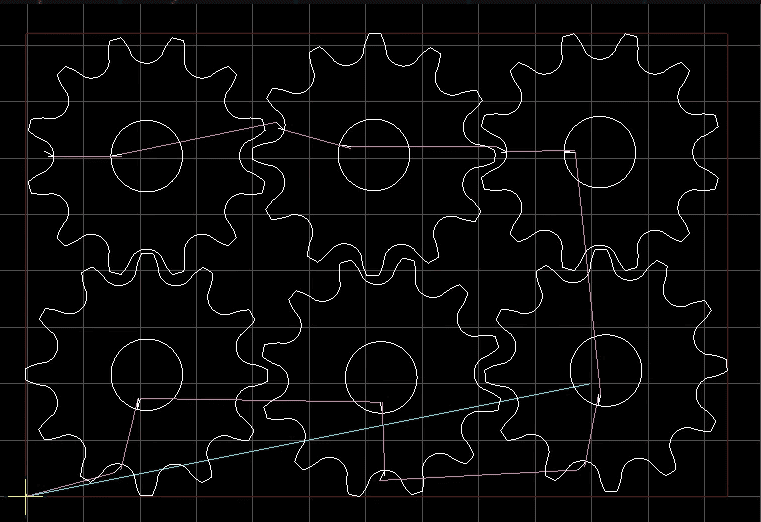
After that, by pressing Sheet Align, the design becomes tangent to the blue line and is completely positioned within the workpiece.
It should be noted that the greater the distance between the two points P1 and P2, the more accurately this process will be performed. Now, we will have one of the following two scenarios:
SheetAlignBaseAxis=X: In this scenario, the points are selected along the X-axis, and the loaded design will align with the line connecting the two points P1 and P2 (as illustrated below):

SheetAlignBaseAxis=Y: In this scenario, the points are selected along the Y-axis, and the loaded design will align with the line connecting the two points P1 and P2 (as illustrated below):
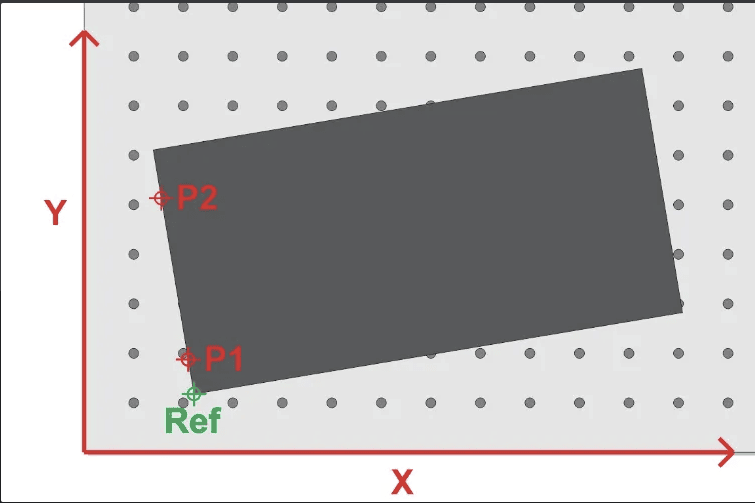

DXF Reader
After opening any DXF file, the DXF Reader window automatically opens and displays the components contained in the file.
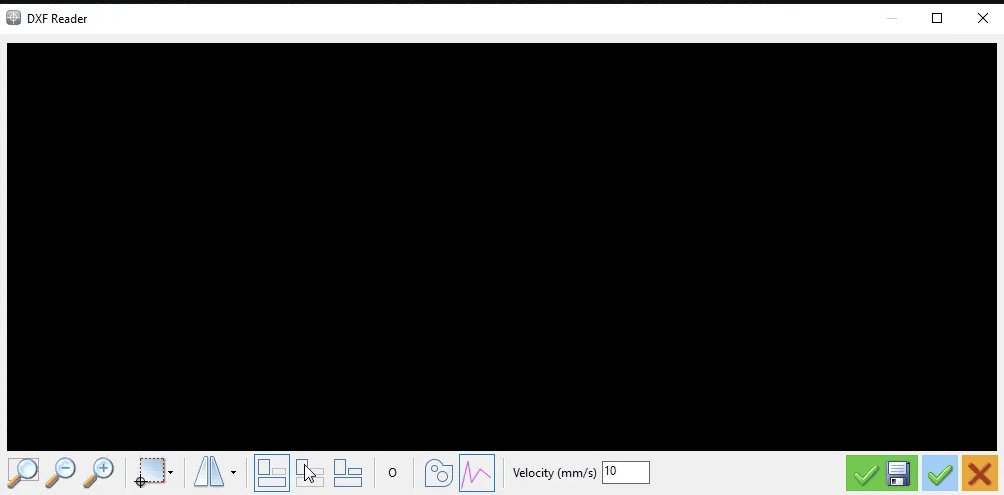
The toolbar below this window includes the following items:
The Zoom Fit button, which when clicked, displays the opened design fully within the DXF Reader window.
The Zoom Out button, which when clicked, reduces the scale of the opened design by one level. Additionally, you can perform the Zoom Out action by holding the mouse pointer over the design and scrolling the Mouse Wheel upwards.
By clicking on this option, the opened design enlarges by one level. Additionally, you can perform the Zoom In action by holding the mouse pointer over the design and scrolling the Mouse Wheel downwards.
This option is used to determine the position of the Reference point or zero of the workpiece in the opened design, which includes the following items:
This option considers the bottom right corner of the shape, or in other words, the endpoint in the positive direction of the X-axis and the endpoint in the negative direction of the Y-axis, as the zero point.

This option considers the top right corner of the shape, or in other words, the endpoint in the positive direction of the X-axis and the endpoint in the positive direction of the Y-axis, as the zero point.
This option considers the top left corner of the shape, or in other words, the endpoint in the negative direction of the X-axis and the endpoint in the positive direction of the Y-axis, as the zero point.
This option considers the top left corner of the shape, or in other words, the endpoint in the negative direction of the X-axis and the endpoint in the positive direction of the Y-axis, as the zero point.
This option considers the starting point of the first piece in the opened design as the zero point.

This option is used for applying rotation (Rotate) or mirroring (Flip) to the design, which includes the following items:
90-degree rotation clockwise.
90-degree rotation counterclockwise.
Mirror across the X-axis

Mirror across the Y-axis.
In any design file, by default, parts are cut in the same sequence as they are drawn in the design software, and the start and end points of each cut are chosen based on the direction of the line drawn in the design software. However, in the DXF Reader section, the order and direction of the part cuts can be changed as desired. When you open a DXF file, by default, all parts are active for execution and the cutting direction is specified.
By clicking on the ‘Arrange Objects’ option, all parts are deactivated. By left-clicking on any part, it becomes activated for cutting, and by clicking again, it is deactivated. Additionally, by right-clicking on parts, you can reverse the cutting direction. If we have selected a number of parts for which the order of execution is important .for selecting the rest of the parts for which the order of execution does not matter from Select objects
The ‘Default Arrange’ option is for executing the design in the default order set by the design software. The ‘Optimize’ option selects the order of part cuts in such a way that minimizes the execution time of the file (the order of cuts is arranged such that after finishing the cut of one part, the closest starting point to the endpoint of the previous part is chosen).
Clicking on this option selects only the parts that are in Polyline form for cutting, and deactivates the parts that do not have this feature.

The pink lines displayed in the figure are non-cutting or Traverse lines, which indicate the path of the machine’s movement when transitioning between two different pieces. Clicking on this option allows you to activate or deactivate the display of these lines.
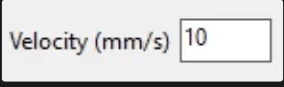
This section determines the cutting speed of the parts, and the unit is millimeters per second. Note that this speed only specifies the machine’s movement speed during cutting and does not affect the machine’s travel speed between two different pieces within a design.
After completing modifications on the loaded file, by clicking on this option, while preserving the original file, you can save your changes before executing the file to avoid the need for re-editing the design in future runs. It should be noted that the file is saved with a .CNC extension as a G-Code file, and it cannot be edited in subsequent runs.

By clicking on this option, without saving changes, the DXF Reader window will close, and the design will be loaded and ready for execution.
By clicking on this option, the DXF Reader window will close without loading the design.
Tips on setting up different cutting machines:
CNC Oxy-Fuel Cutting Machine: In oxy-fuel cutting machines with an automatic ignition system, separate solenoid valves on the gas output, pre-heated air, and oxygen for cutting, the outputs are defined as follows: ➢ C-PreCutPin: Automatic ignition
➢ C-PreCutPin+CutPin: Solenoid valve for gas output and solenoid valve for pre-heated air output
➢ C-CutPin: Solenoid valve for oxygen cutting or jet
The PreCutTime parameter can be used to control the duration of molten pool formation.
The CutTime parameter can be used to control the duration it takes to pierce the workpiece.
Considering that the outputs of the control board supply a maximum current of 200 milliamps to the consumer and drawing more current than this amount can damage the output, even if using a 24-volt solenoid valve, avoid directly connecting the solenoid valve to the control board and always use a relay.
In machines where the distance from the solenoid valves to the cutting nozzle is significant and the length of the intermediary hose is long, to prevent damage to the end part of the cut, be sure to use the PostCutTime parameter. This ensures that the machine pauses until the gas in the hoses is fully discharged, preventing damage to the